Image slides
Use layout: "image" for any slide whose main content is a picture. In many decks this is the most common explicit slide.
A figure with a caption
The default figure variant places a header above a contained picture, with an optional caption: beneath. It never crops, which is what a chart or screenshot needs:
#m.slide(layout: "image", image: path("fig/gdp.png"))[== Growth since 1950]

#m.slide(
  layout: "image",
  image: path("fig/pie.png"),
  caption: [Teaching, research, admin],
)[== My job]
The figure variant has header, image, and caption cells but no body, so a single line of commentary belongs in caption:. The caption produces a native Typst figure, so it follows the deck’s show figure.caption rules.
A picture beside text
The directional variants left, right, top, and bottom pair a full-bleed picture cell with header and body cells, filled by two positional blocks. Pass [] as the second block when the picture needs a title but no body:
#m.slide(
  layout: "image",
  variant: "right",
  image: path("fig/book.jpg"),
)[== Readings][
  - Almost every week.
  - PDFs on the course site.
]
Two arguments control the picture cell:
tracks:sizes it. The value is independent of the side, sotracks: 40%means the same thing underleftandright, and the two stay mirror images.fit:controls cropping. The directional variants default to"cover", which fills the cell by cropping the picture. Passfit: "contain"for a chart, a book cover, or any picture whose edges carry meaning.
A full-bleed picture
The full variant puts the picture behind a single body cell that covers the whole slide. The cell inherits the deck’s ordinary text color, so text over a photograph needs two things: a scrim: in the image specification to darken the picture, and a text fill override in the body:
#m.slide(
  layout: "image",
  variant: "full",
  image: (
    path: path("fig/auditorium.jpg"),
    scrim: black.transparentize(45%),
  ),
)[
  #set text(fill: white)
  == Who are you?
]
Omit the body entirely for a bare picture slide with no text at all. The full variant also works for a custom opening slide: when no title variant fits, write the title as ordinary text over a full-bleed picture.
#import "@preview/mosaic:0.0.1" as m

#show: m.setup

// The default `figure` variant: a header above a contained picture, with an
// optional caption beneath. Charts and screenshots are never cropped.
#m.slide(
  layout: "image",
  image: path("/docs-src/assets/images/bonsai.webp"),
  caption: [Careful pruning, every year],
)[== The figure variant]

// A directional variant pairs a full-bleed picture with a header and body.
// `tracks` sizes the picture band; the first block is the header, the second
// is the body.
#m.slide(
  layout: "image",
  variant: "right",
  image: path("/docs-src/assets/images/dog.webp"),
  tracks: 45%,
)[== Picture beside text][
  - The picture covers the right band.
  - The text keeps the left.
]

// `bottom` stacks the text band above the picture. `fit: "contain"` keeps the
// whole picture visible instead of cropping it to fill the band.
#m.slide(
  layout: "image",
  variant: "bottom",
  image: path("/docs-src/assets/images/bonsai.webp"),
  fit: "contain",
)[== Picture below text][A single standing line above the picture.]

// `full` puts the picture behind one free-form body cell. The scrim quiets
// the photograph and the text fill supplies the contrast.
#m.slide(
  layout: "image",
  variant: "full",
  image: (
    path: path("/docs-src/assets/images/title-city.webp"),
    scrim: black.transparentize(45%),
  ),
)[
  #set text(fill: white)
  == Full-bleed photograph
]
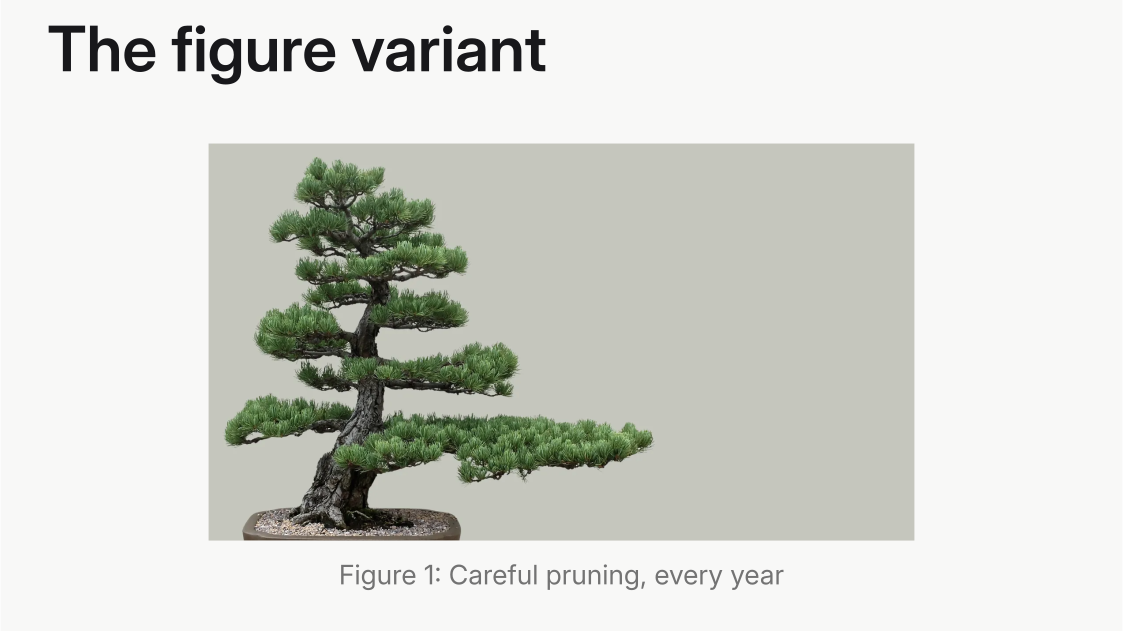

Image paths inside layout arguments cross the package boundary, so wrap every asset path in Typst’s path(); see Asset paths.
Named arguments on an image slide refine the configured layout rather than replacing it; see Refine a layout. For image loading, fitting, scrims, and figures in ordinary cells, see Images for a picture on a plane behind the whole grid, see Background.