Themes
Themes control how Calepin renders websites and notebooks. A theme can provide MiniJinja HTML templates, partials, CSS, JavaScript, and a Typst-side layouts/pdf.typ layout for paged (PDF or SVG) notebook output. The default theme is called calepin.
Theme customization uses one mechanism: create a local theme directory and point calepin to it when compiling.
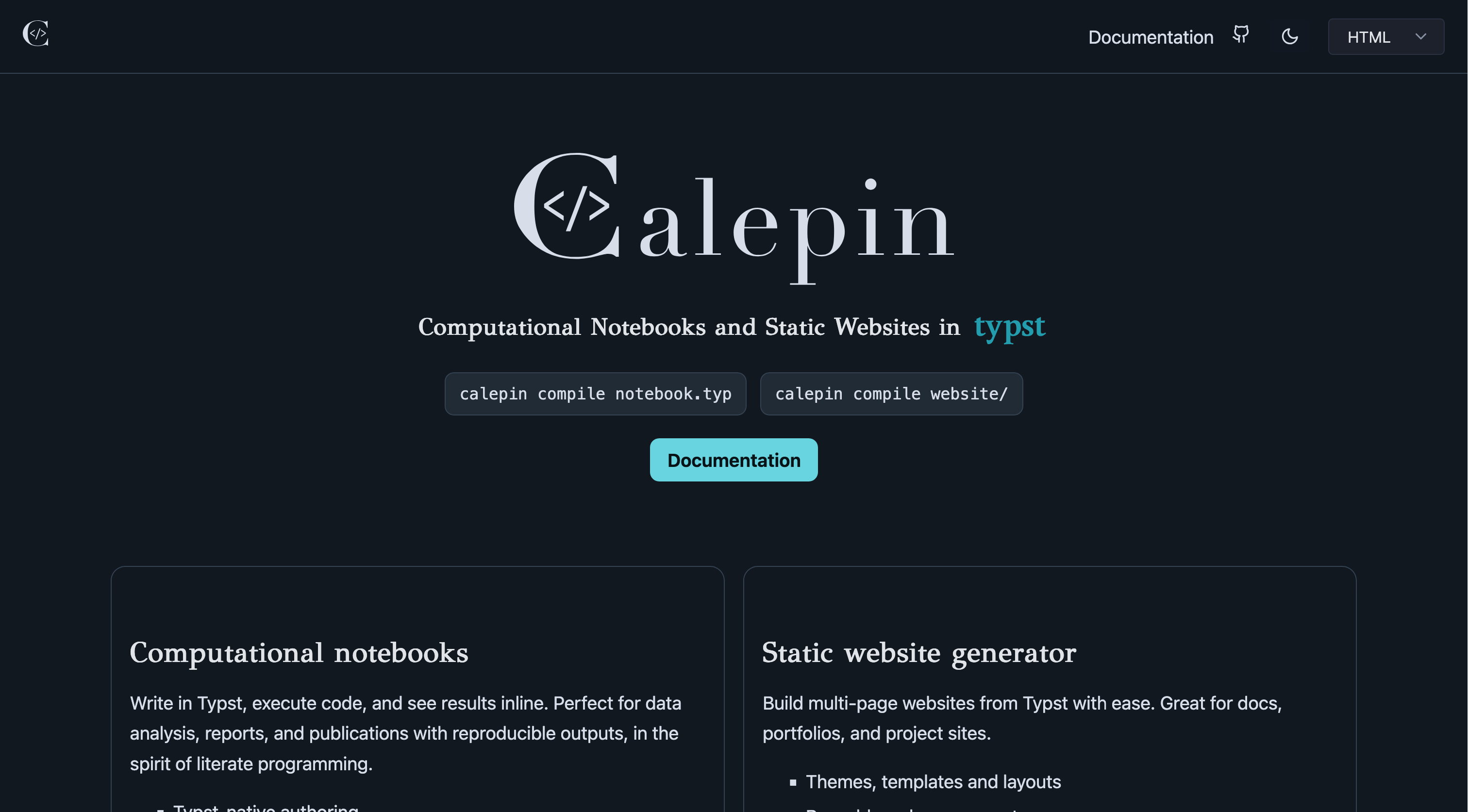 Calepin website theme in dark mode
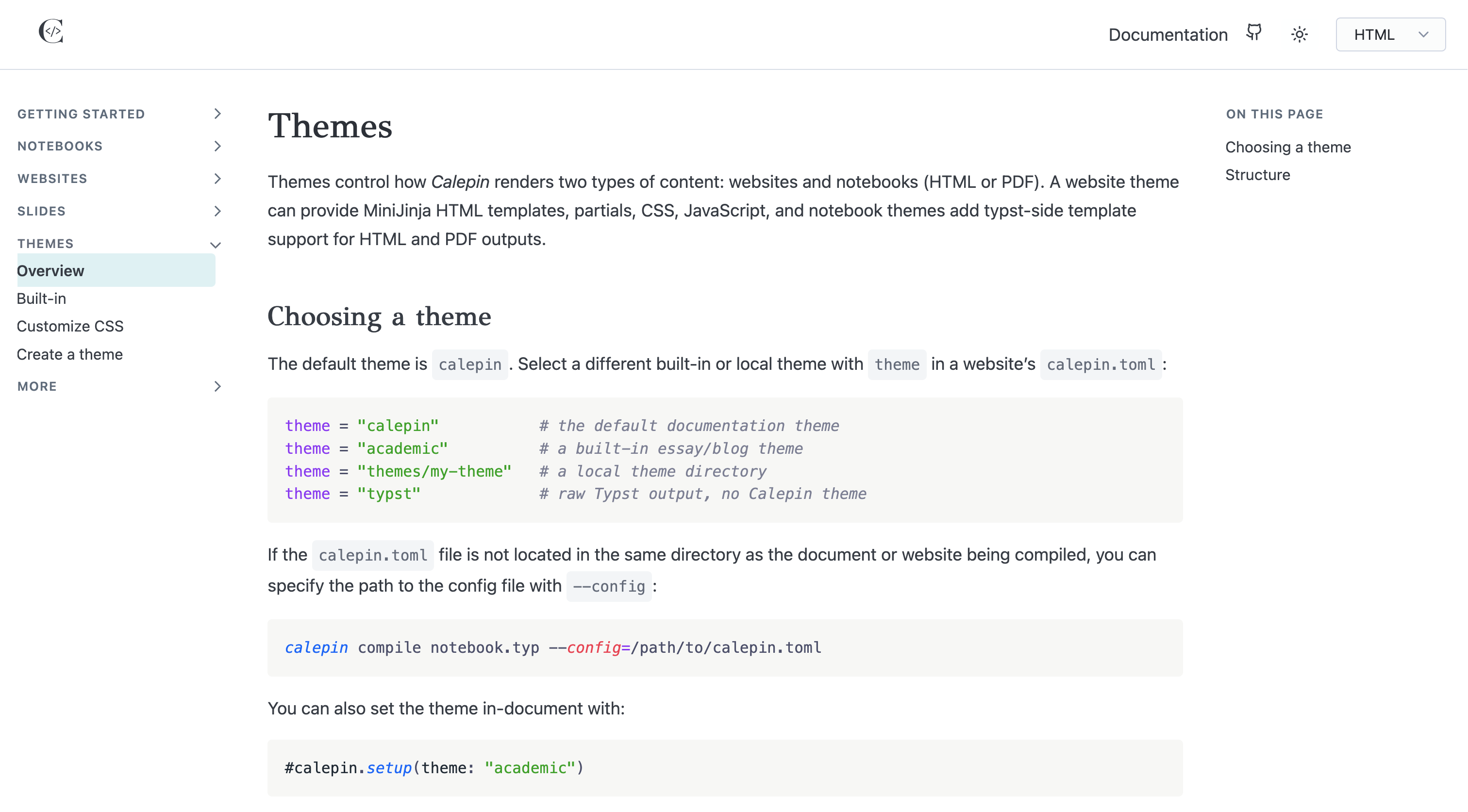 Calepin website theme in light mode
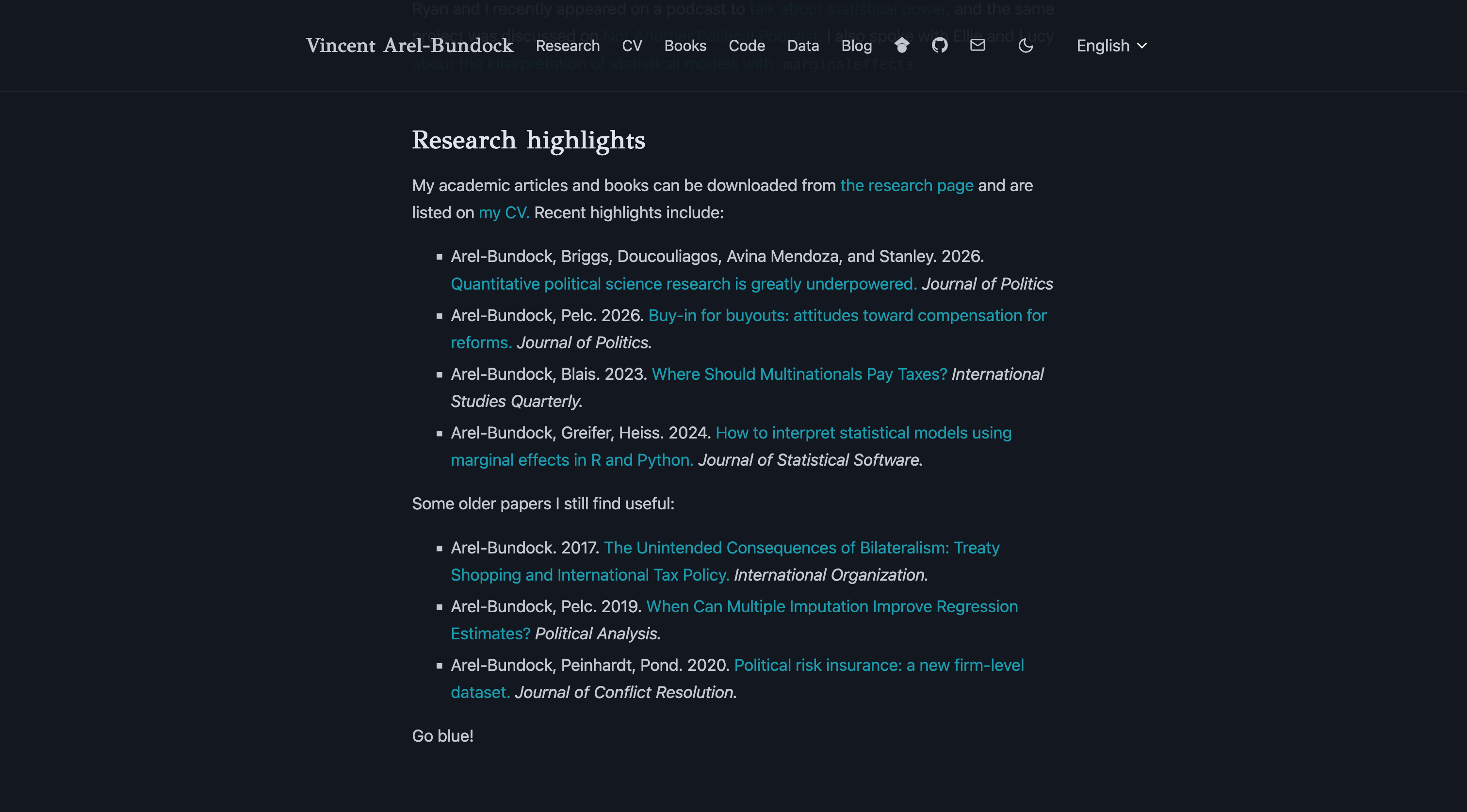 Academic website theme in dark mode
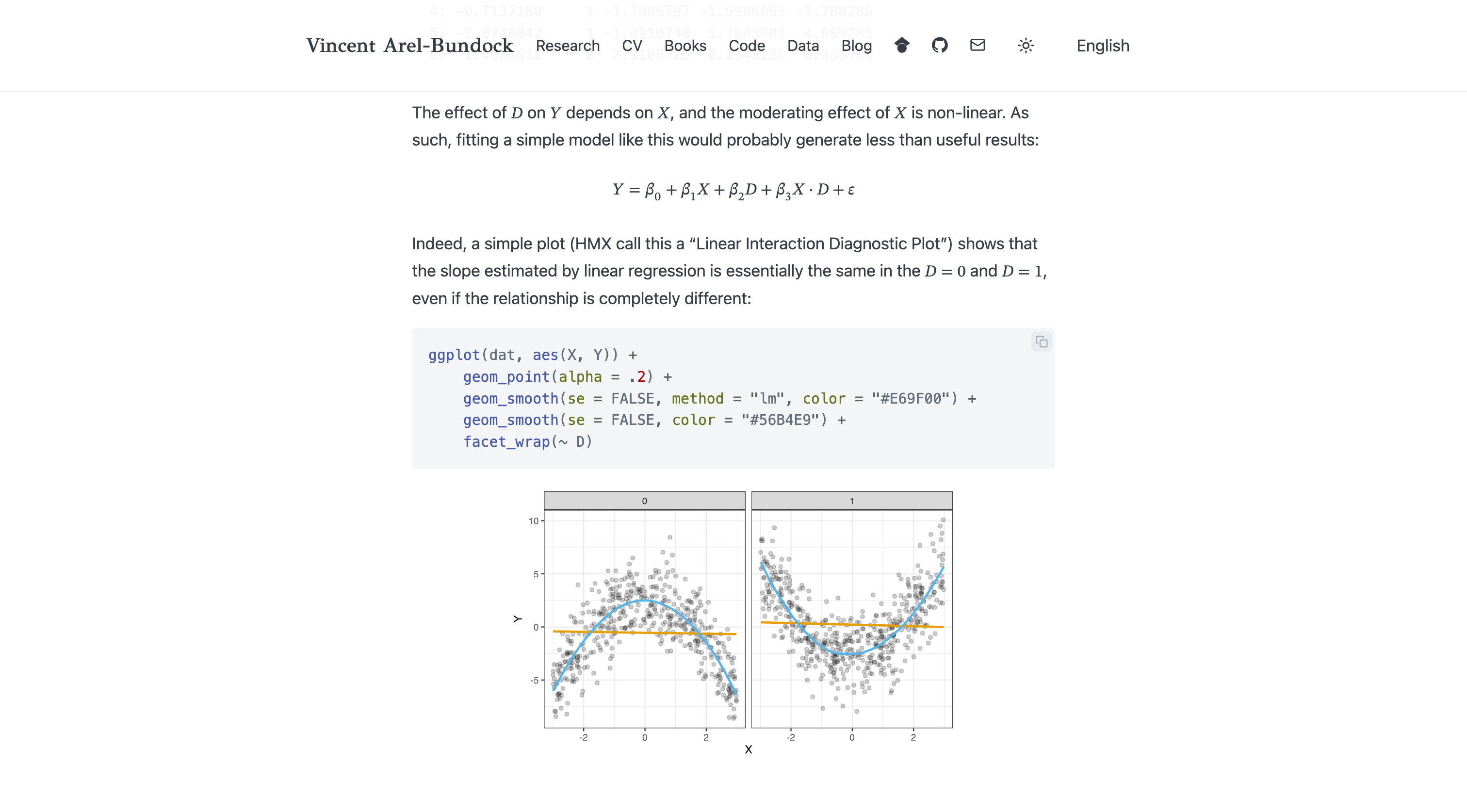 Academic website theme in light mode
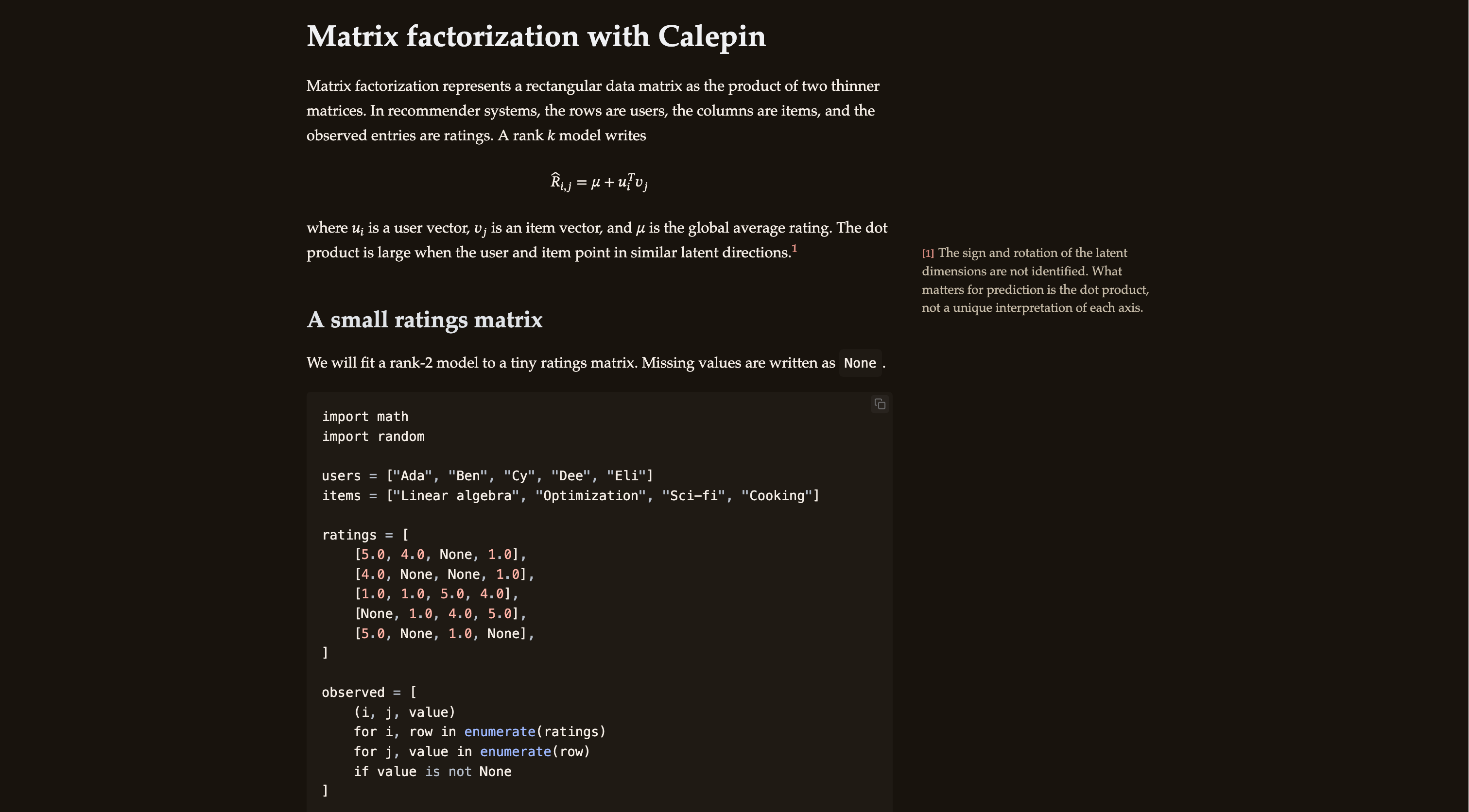 Tufte notebook theme in dark mode
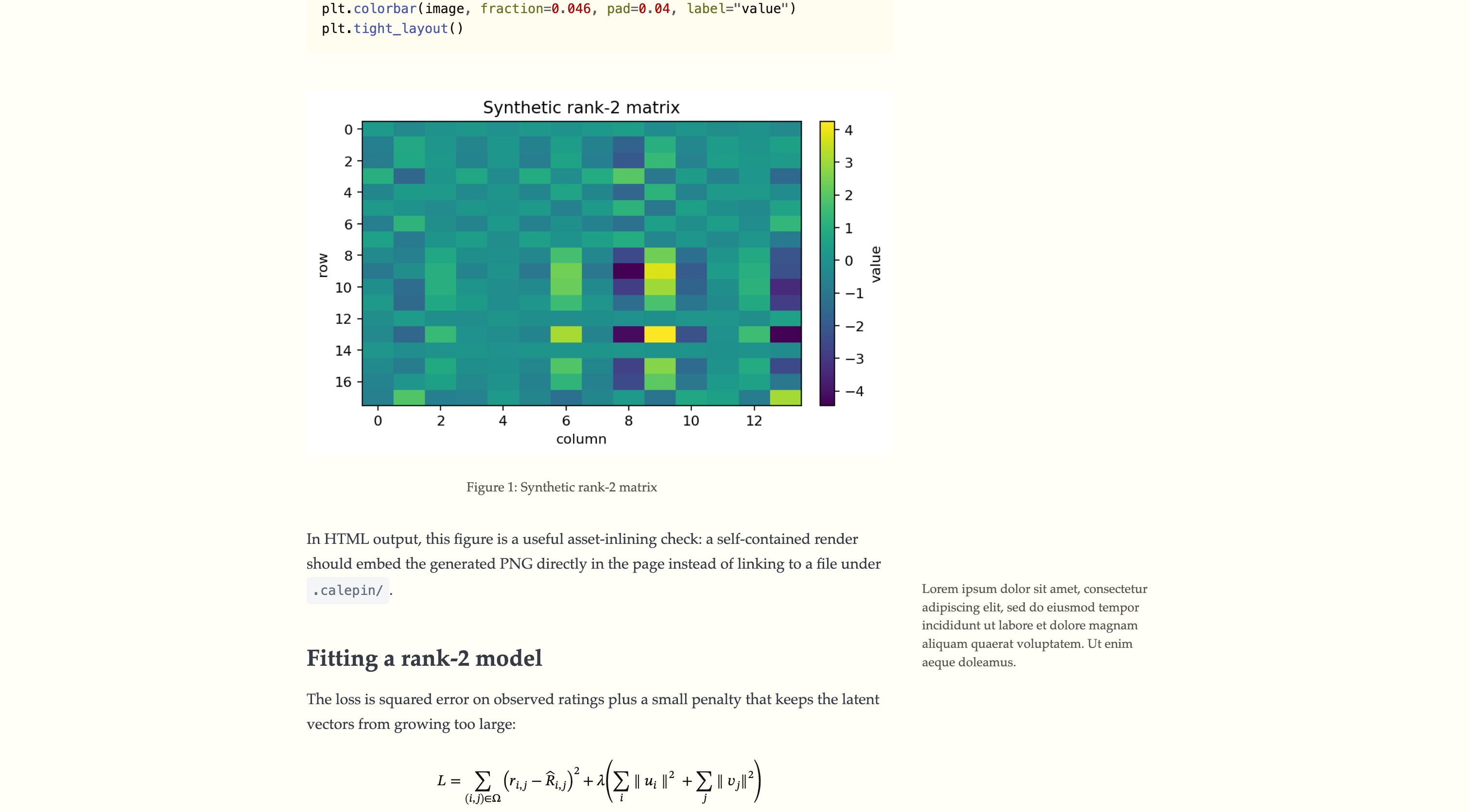 Tufte notebook theme in light mode
Choose a theme
Select a built-in or local theme with --set theme=...:
calepin compile notebook.typ --set theme=calepin
calepin compile notebook.typ --set theme=academic
calepin compile notebook.typ --set theme=typst
calepin compile notebook.typ --set theme=themes/my-theme
The built-in calepin theme is the default documentation theme, academic is for essay/blog pages, and typst emits raw Typst output with no Calepin styling.
You can also set the theme in-document:
#calepin.setup(theme: "academic")Calepin ships with built-in themes compiled into the binary. They are always available by name and can be selected without adding theme files to your project.
calepin
calepin is the default documentation theme. It is designed for project documentation, manuals, notebook collections, and sites where navigation and reference lookup matter.
It includes sidebar navigation, a top bar, previous and next page links, an on-page table of contents, dark mode, copy buttons on code blocks, and rendered, source, and PDF view switching.
academic
academic is a reading-first essay and blog theme. It is designed for articles, research notes, project blogs, and smaller websites that prioritize long-form reading over dense navigation.
It includes a centered narrow text column, margin-note support, top navigation, dark mode, copy buttons on code blocks, and the shared Calepin search and language controls.
typst
typst disables the website and notebook themed wrappers and uses raw Typst output. Use this when you want unstyled HTML or PDF output.
Build or customize
A theme is a directory with templates, resources, and a manifest. A minimal theme could look like this, with only a theme.toml manifest and one CSS stylesheet:
my-theme/
theme.toml
css/
site.css
A custom theme must extend one, and only one, built-in theme. This inheritance is specified explicitly in the theme.toml manifest:
extends = "academic"
# extends = "calepin" # full website with navigation
# extends = "typst" # bare bones HTML and PDF; no styling
A fuller theme can provide any of these files:
my-theme/
theme.toml # theme metadata and inheritance
layouts/
site.html # website page wrapper
document.html # standalone notebook HTML wrapper
site-landing.html # optional page-specific website layout
pdf.typ # PDF/SVG Typst layout around notebook source
partials/
... # reusable MiniJinja fragments
css/
... # theme CSS
js/
... # theme JavaScript
All the files in your custom theme are optional, except for the theme.toml manifest. When a file is present, it overrides the built-in theme file of the same name. When a file absent, it falls back to the built-in theme. New CSS and JavaScript files are appended in sorted order after inherited files.
A good way to start building a theme is to “eject” one of the built-in themes into your project. This copies all of the built-in theme’s files into a local directory where you can modify or delete them. To start a new theme based on academic, run:
calepin new theme /path/to/my_theme --theme=academic
Modify the files in your my_theme directory, then render your document or website using the new theme:
calepin compile notebook.typ --set theme=/path/to/my_theme/